
Documentation menu
Wake tasks
Wake tasks are scheduled tasks that are allowed to wake your computer from sleep. Windows and your apps create them. For example, Windows Update can wake the computer to install updates and then restart it. That can turn your computer on at night, drain the battery, or restart it and close your open apps.
Wake tasks lists the tasks SystemTuna has found. To open it, choose Advanced › Wake control › Wake tasks in the sidebar.
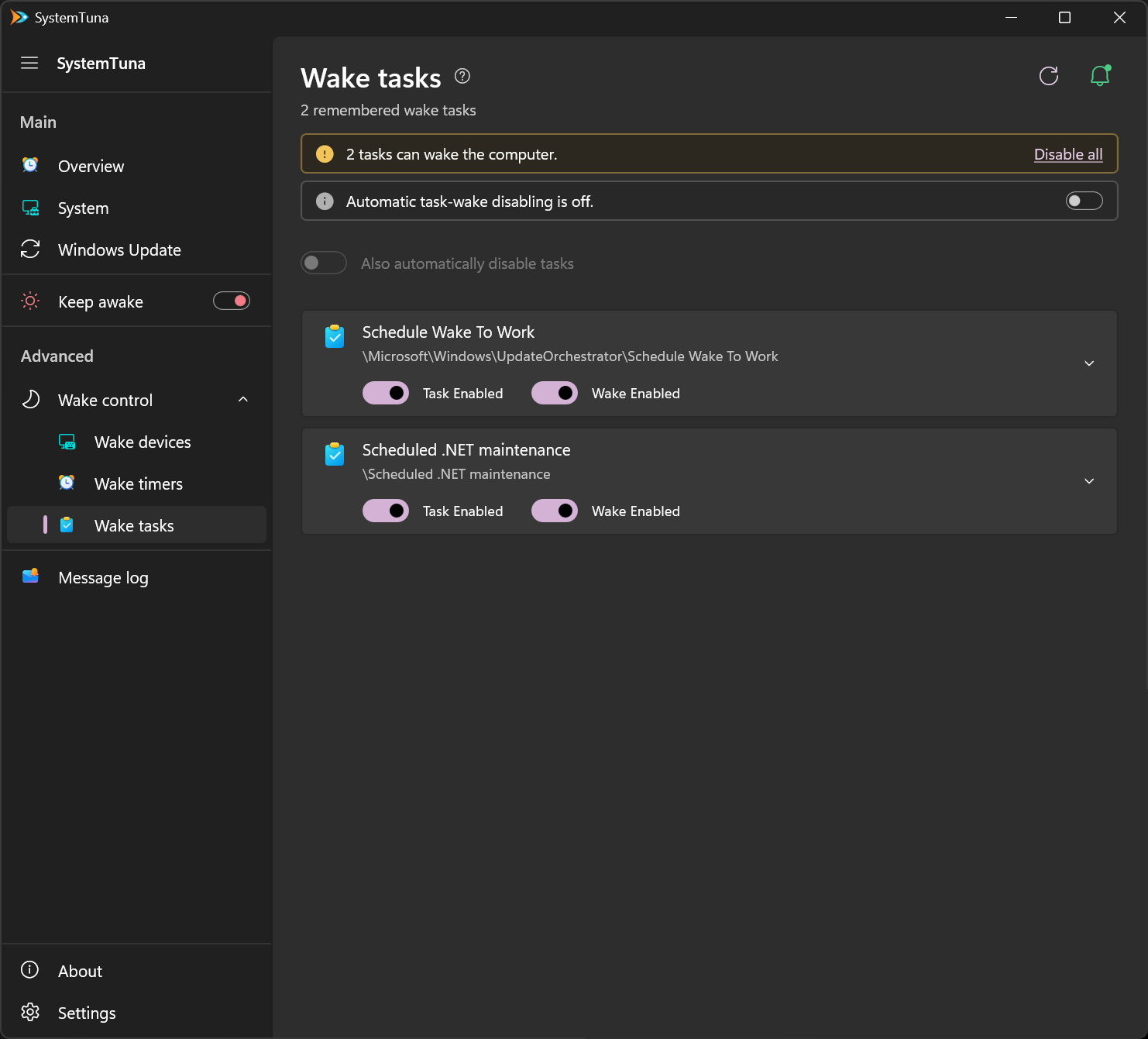
Stop a task from waking the computer
Each task has two switches:
- Wake Enabled: turn it off to stop the task from waking the computer. The task can still run while the computer is awake.
- Task Enabled: turn it off to stop the task completely.
Disable all in the amber alert turns off wake for every task in it.
Keep them off
Windows and apps often turn wake back on, for example after an update. Turn on the switch in the automatic disabling alert, and SystemTuna keeps wake off for every task it has found. This is recommended.
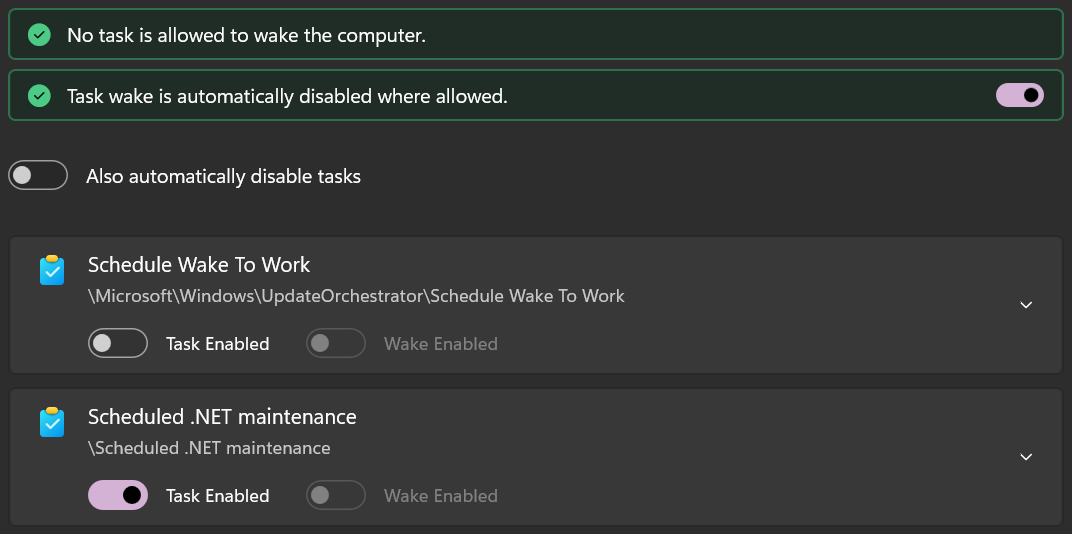
Also automatically disable tasks keeps the tasks turned off too. Use it with care. Turning off Windows tasks can stop updates or maintenance. To control when updates install without turning off tasks, use Windows Update management.
To leave a single task alone, expand it with the arrow at its right and turn off its Allow switches.
When an app or Windows removes a task, SystemTuna keeps it in the list as No longer installed, so your settings apply again if it comes back. Select Forget to remove it from the list.
Do not wake from sleep on the Overview turns on the automatic disabling together with the other wake settings.