
Documentation menu
Wake devices
Some devices are allowed to wake your computer from sleep. Wake devices shows them and lets you choose which ones may do it. To open it, choose Advanced › Wake control › Wake devices in the sidebar.
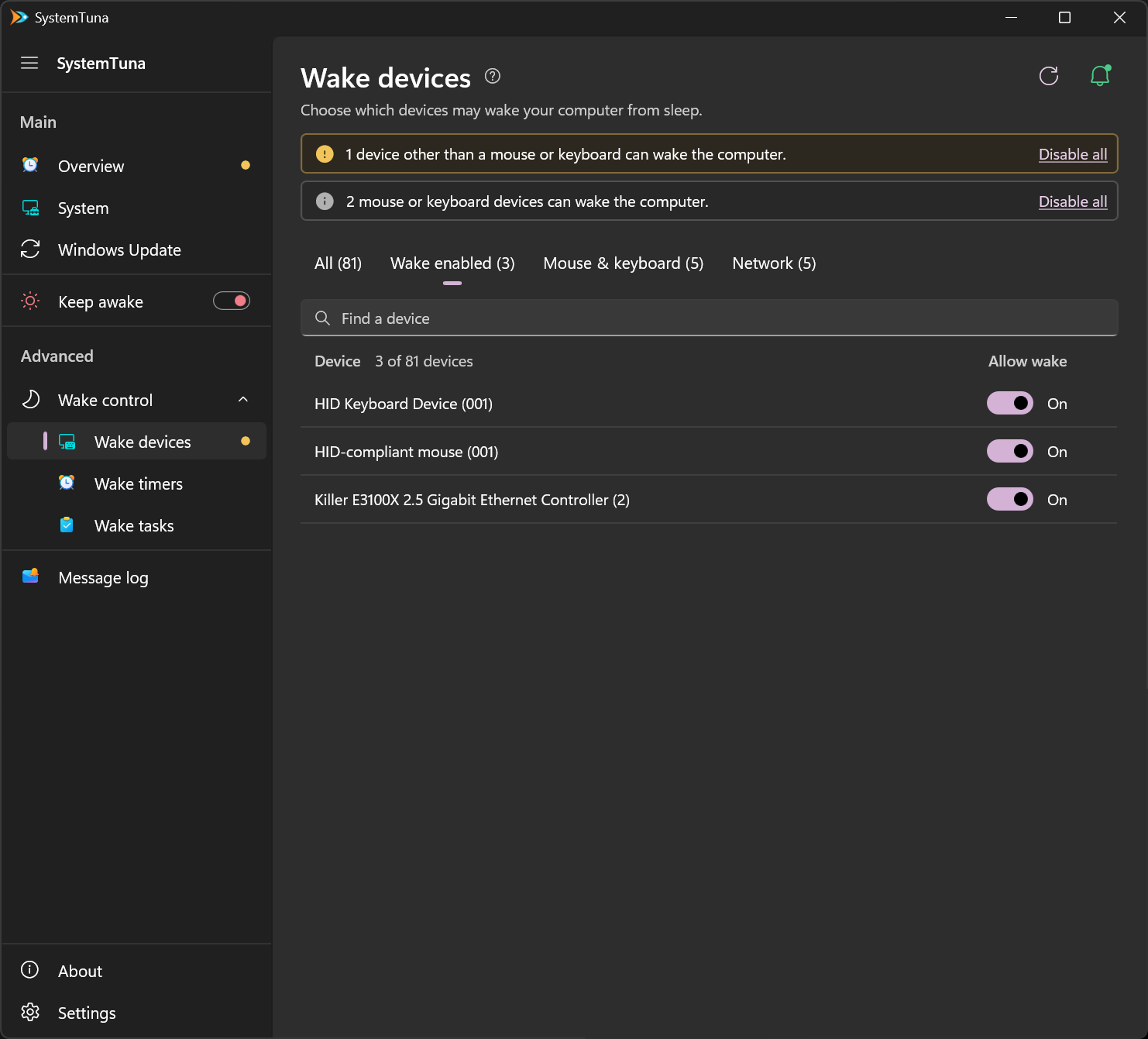
Three kinds of devices can wake a PC:
- Mouse and keyboard: moving the mouse or pressing a key wakes the computer.
- Network adapter: network activity can wake the computer, even when you did not ask for it.
- Other devices, such as USB or Bluetooth adapters.
Alerts
The alerts at the top count the devices that can wake the computer:
- Amber: devices other than a mouse or keyboard. They are the usual cause of unexpected wake-ups.
- Gray: mice and keyboards. They are listed for your information.
Disable all at the right of an alert turns off wake only for the devices in that alert.
Choose devices
Below the alerts, the tabs filter the list:
- All: every device Windows knows.
- Wake enabled: the devices that can wake the computer now.
- Mouse & keyboard and Network: the devices of that kind.
Type in Find a device to search by name. The Allow wake switch of a device turns its wake on or off.
Turn off Allow wake for the devices you do not need to wake the computer. Keep it on for a mouse or keyboard if you use it to wake the computer. If you turn it off for all of them, press the power button to wake the computer.
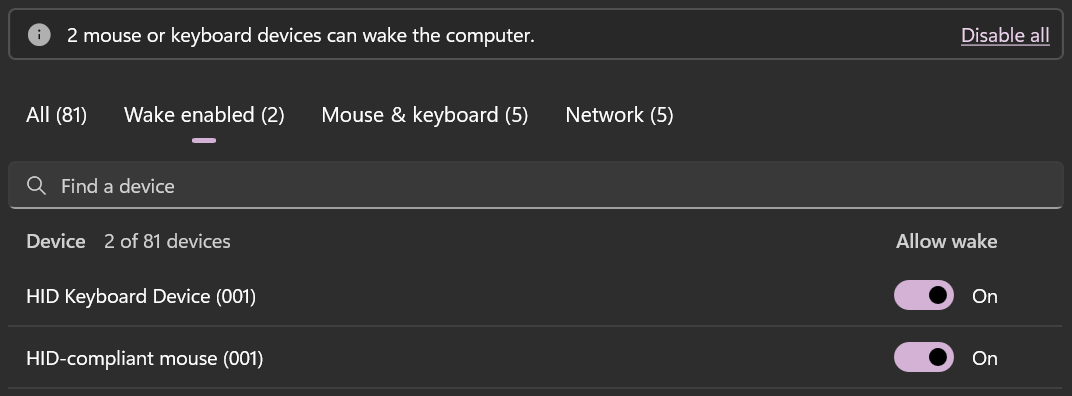
Windows may identify a keyboard as a mouse, or a mouse as a keyboard. A wireless receiver or a mouse with extra buttons can appear as both, so check which device you turn off. SystemTuna asks before turning off wake for a mouse or keyboard. Do not show again turns that warning off, and Settings turns it on again.
Keep them off
Do not wake from sleep on the Overview turns off wake for every device except mice and keyboards, and keeps it off when Windows turns it back on.