
Documentation menu
Overview
The Overview is the first page SystemTuna shows. It tells you at a glance whether your computer is kept awake, what can wake it from sleep and whether Windows installs updates by itself. To open it, choose Overview at the top of the sidebar.
The Overview has two views. Switch between them with Simplified and Advanced next to the page title.
Simplified
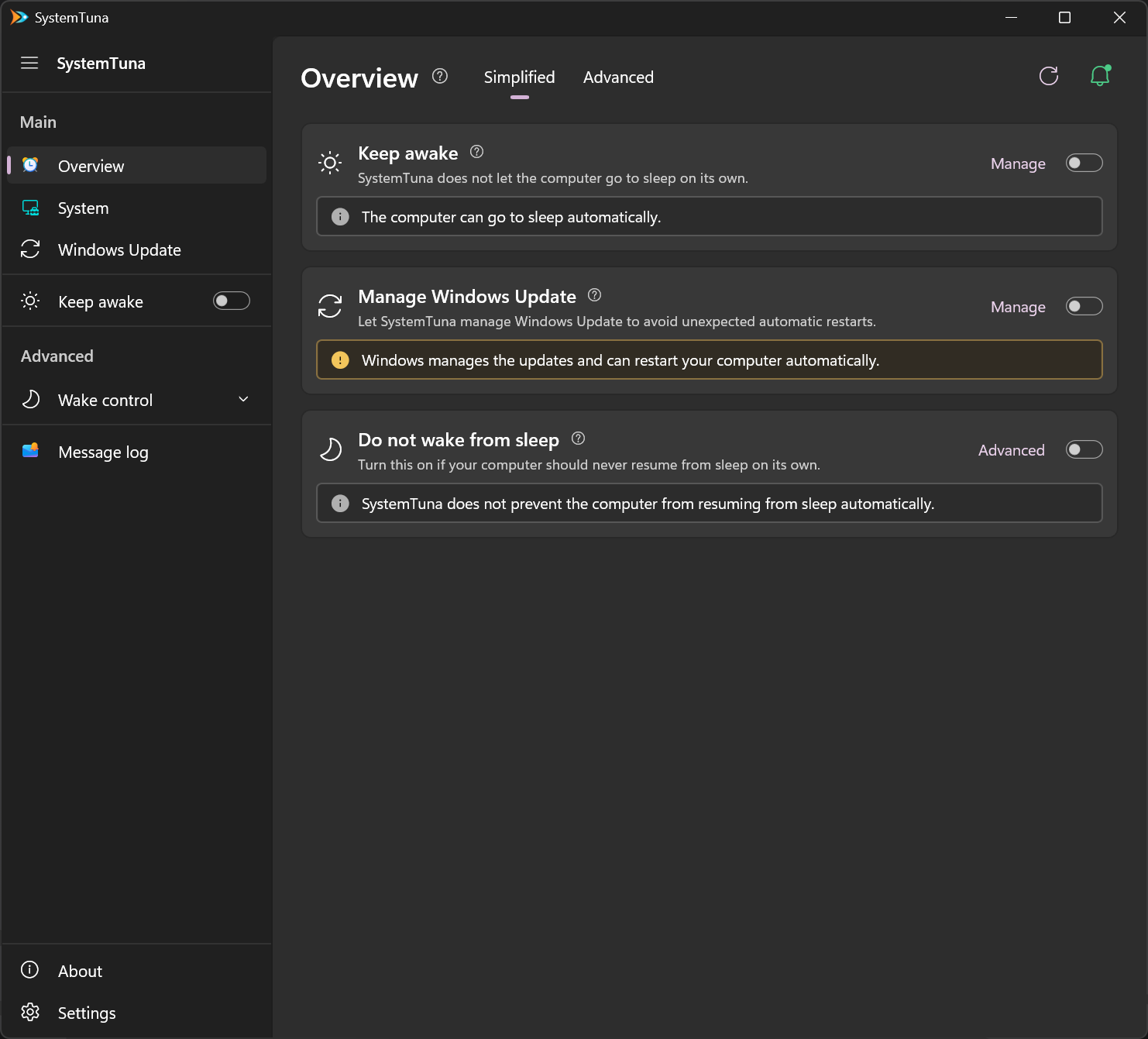
The Simplified view has three cards:
- Keep awake: whether SystemTuna stops the computer from going to sleep on its own. See Keep awake.
- Manage Windows Update: whether Windows installs updates, and restarts to finish them, without asking. See Windows Update.
- Do not wake from sleep: everything that can wake the computer, in one switch. See Do not wake from sleep.
The switch at the right of a card turns its feature on or off. Manage opens the page of the feature. Advanced on the Do not wake from sleep card opens the Advanced view.
To let SystemTuna take care of wake-ups and updates, turn on Manage Windows Update and Do not wake from sleep.
Advanced
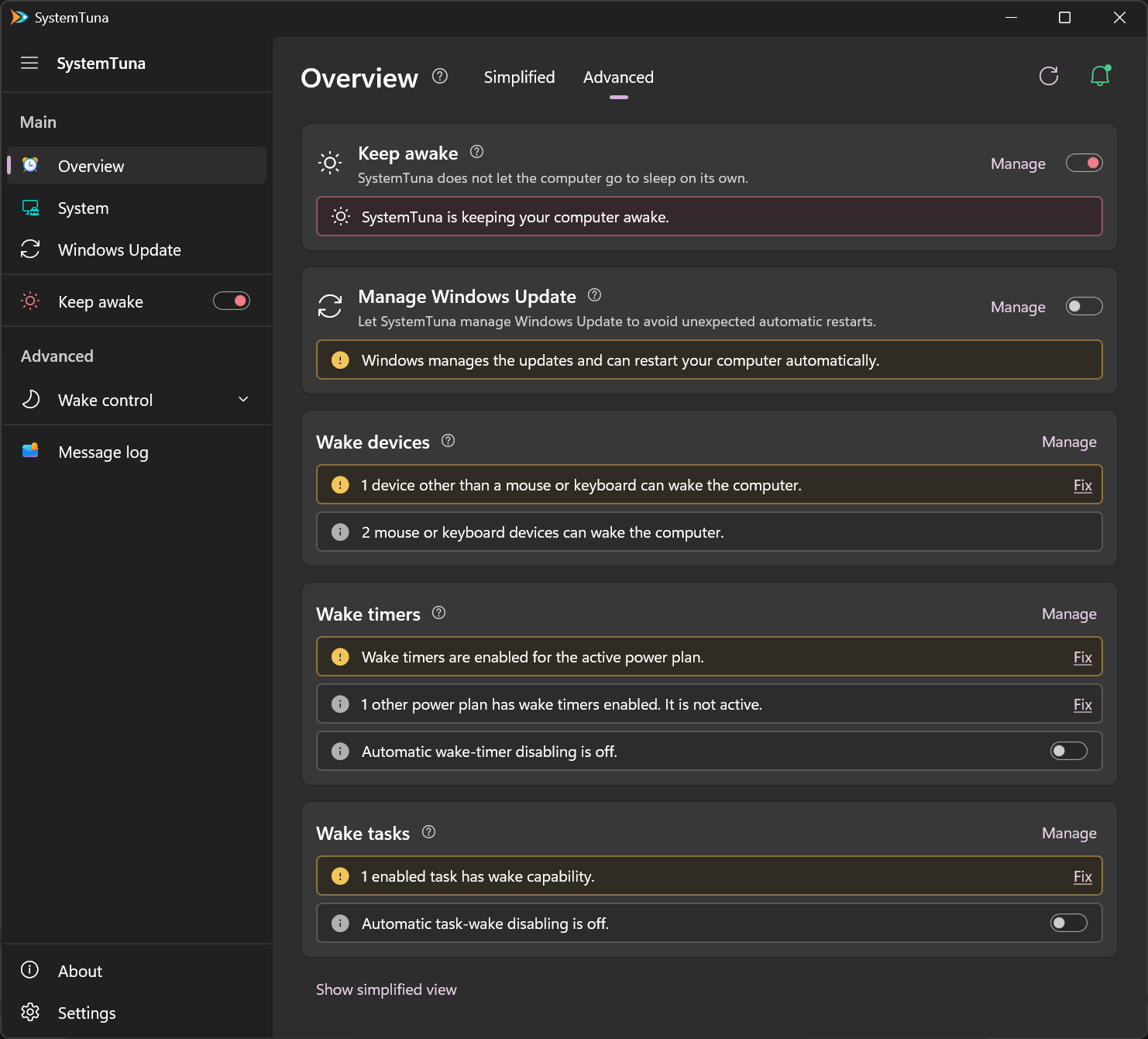
The Advanced view shows the same Keep awake and Manage Windows Update cards, then Wake devices, Wake timers and Wake tasks separately, with a line for each thing that can wake the computer.
- Fix changes just what its line describes, for example it turns off the wake timers of the active power plan.
- Manage opens the page with the details: Wake devices, Wake timers or Wake tasks.
- The lines about automatic disabling have a switch instead of Fix.
- Mouse and keyboard wake has no Fix, so you do not lose the way to wake the computer by accident. Turn it off on Wake devices if you want to.
Show simplified view at the bottom of the page returns to the Simplified view.
Colors
| Color | Meaning |
|---|---|
| Green | All good. |
| Amber | Something can wake your computer or differs from the recommended setup, or Windows installs updates by itself. |
| Red | Keep awake is on, or an urgent update waits for your approval. |
| Gray | For your information only, or a feature that is turned off. |
The ? next to each card explains more. The button with the circular arrow at the top right reads the current state again.