
Documentation menu
Windows Update
By default, Windows installs updates by itself. Many of them need a restart, so Windows restarts the computer outside your active hours, also when you left it running on purpose, for example for a long download or an AI agent at work.
With Windows Update management on, new updates wait for your approval before they install. You choose when to install them, so the restart that follows does not come by surprise.
To open the page, choose Windows Update in the sidebar.
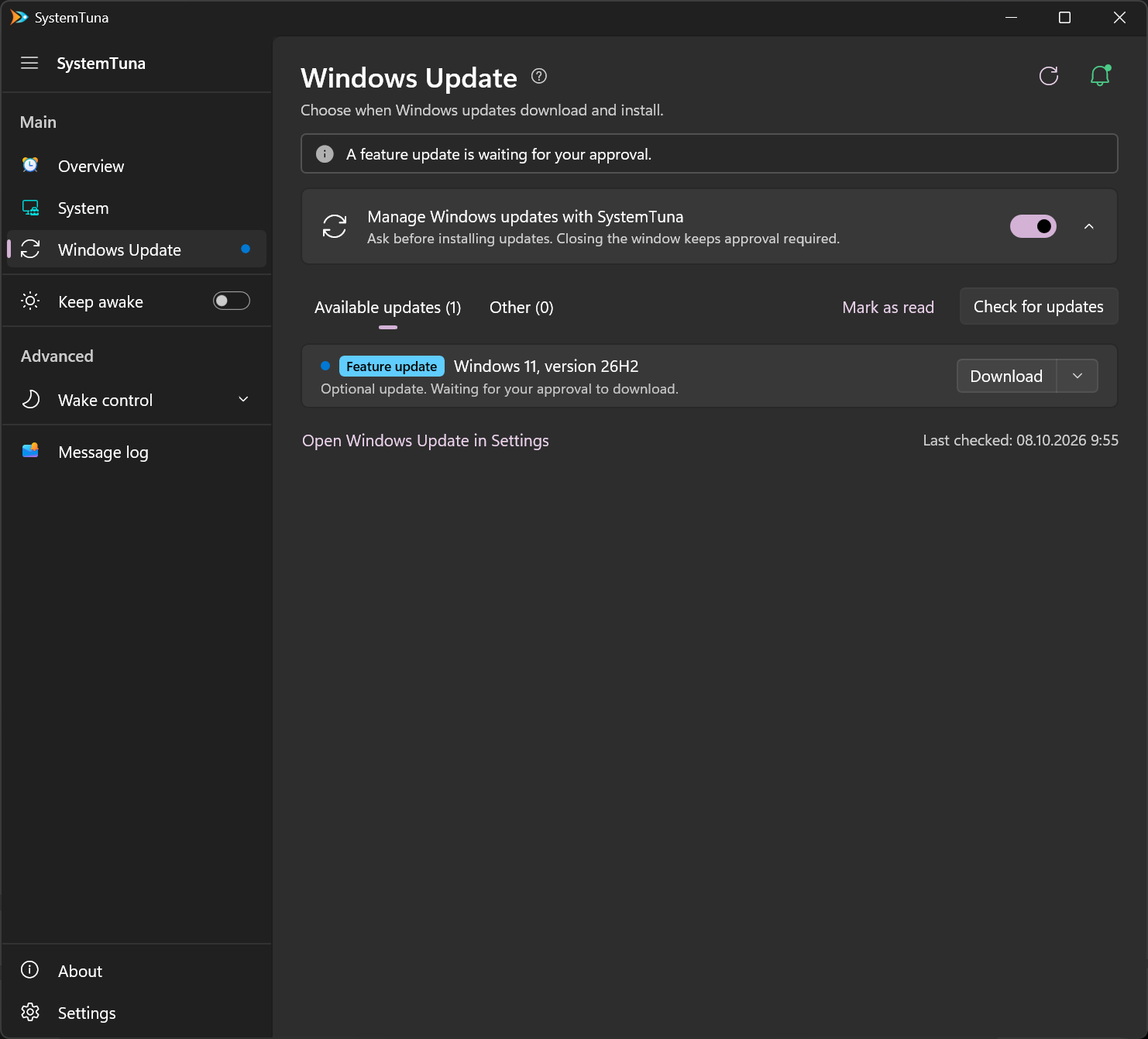
Turn on management
Turn on Manage Windows updates with SystemTuna at the top of the Windows Update page. You can also turn on the switch of the Manage Windows Update card on the Overview.

Select the arrow at the right of the switch to see two options:
- Download updates automatically is on by default. Updates download by themselves and wait for your approval to install. Turn it off to approve downloads too. Optional updates always wait for your download approval.
- Install Microsoft Defender updates automatically is on by default. These security intelligence updates keep Microsoft Defender current, arrive several times a day and never need a restart, so SystemTuna installs them without asking. Turn it off to approve them like other updates.
Turning management on does not cancel an installation already in progress or a restart already pending.
Approve updates
The Available updates tab lists the updates and their state. A small colored badge shows how Windows classifies each update: Urgent, Critical security, Security, Critical fix, Definitions, Feature update, Update or Driver, and Optional. The most important updates come first.
- Download downloads an update. Install then installs it when you are ready.
- The arrow beside Download offers Download & Install, which approves both steps at once. The installation then continues after the download, even if you close SystemTuna.
Windows may restart to finish an approved installation, and SystemTuna does not block that restart. When an installed update needs a restart, the page offers Restart now.
When urgent, security or critical updates wait, the alerts on this page and on the Overview ask you to install them soon. An urgent or critical security update turns the alert red. Install security updates regularly to keep your PC protected.
Check for updates asks Windows to look for new updates, and Last checked shows when it last did. Mark as read marks the listed updates as seen. Windows hides optional driver updates, so SystemTuna keeps them under the Other tab. Open it only for a specific device problem. Otherwise automatic updates keep your drivers up to date.
Notifications
Keep SystemTuna running in the notification area, and it shows a desktop notification when updates wait for your approval. Open SystemTuna opens the Windows Update page.
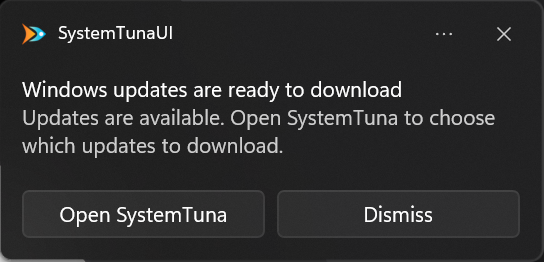
To choose which updates notify you, select Settings at the bottom of the sidebar, then Windows Update. The choices are all updates, all except optional updates, only urgent, security and critical updates, only urgent and security updates, or none. Windows notification settings can also silence these notifications. The page still shows what waits.
Turn management off
Turning management off lets Windows go back to installing updates by itself. Revert changes in Settings and uninstalling SystemTuna do the same. SystemTuna never takes over from another update administrator and does not change other Windows Update policies.
Availability
Management uses an update approval feature of Windows. It works on the Windows versions that provide it, Windows Home included. Where Windows does not provide it, the page says so. On Windows Pro, Enterprise and Education, the page then offers the older Windows setting Install updates only when I choose instead. Windows still downloads updates by itself and waits for you to install them in Windows Settings.