
Documentation menu
Keep awake
Windows puts your computer to sleep after the time set in your power plan. Keep awake stops that while you need the computer, for example while an AI agent works on a long task, or during a download, backup or presentation.
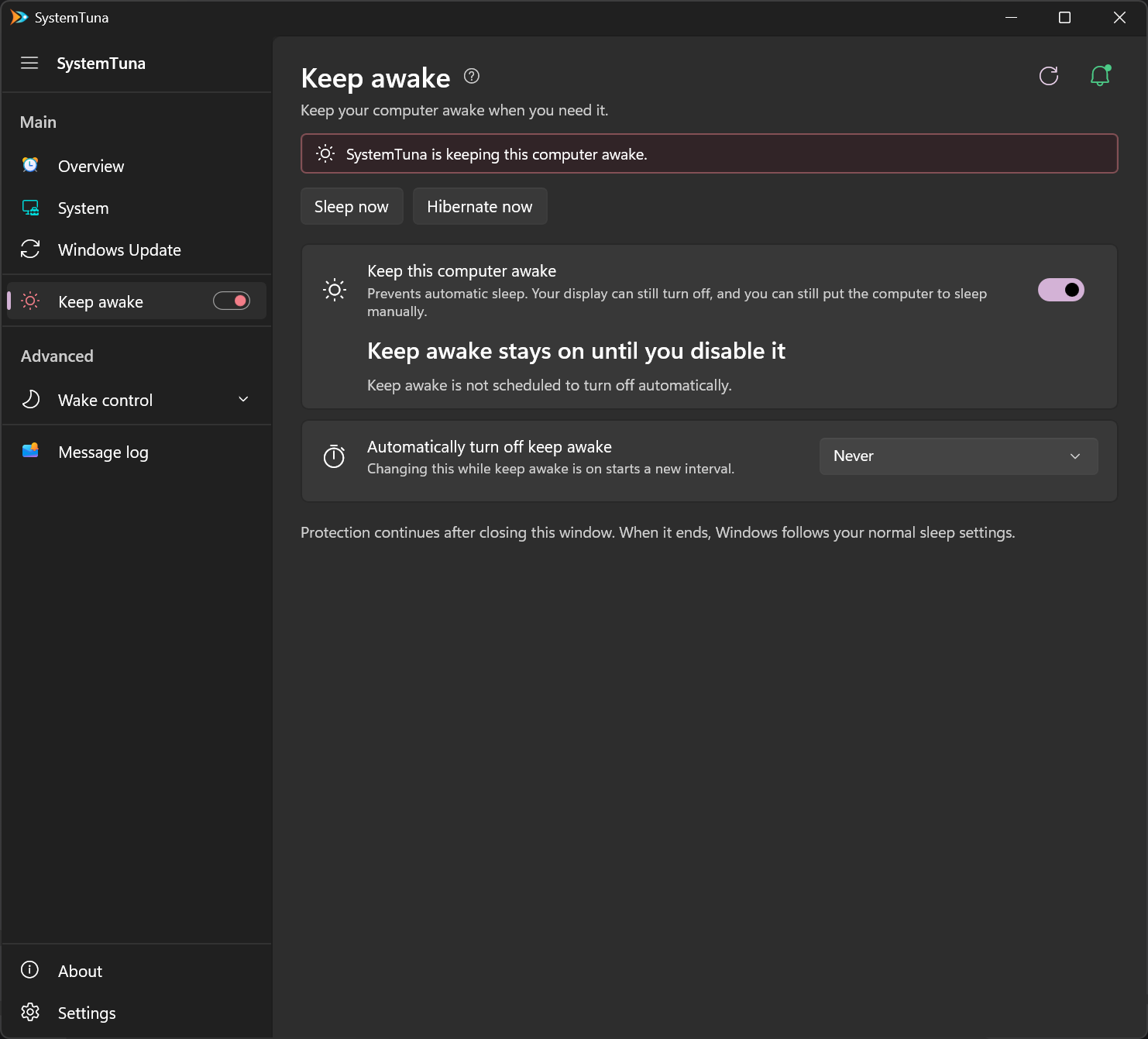
To open the page, choose Keep awake in the sidebar. The switch next to it turns Keep awake on or off from any page.

What Keep awake does
- Your computer does not go to sleep on its own, whatever its sleep timeout is.
- Your screen can still turn off.
- You can still put the computer to sleep yourself. Sleep now and Hibernate now at the top of the page do it at once.
- Keep awake keeps working after you close SystemTuna and after Windows restarts.
The alert at the top of the page is red while Keep awake stays on until you turn it off, and amber while it turns off by itself later or waits on battery.
Turn it off automatically
Automatically turn off keep awake chooses when Keep awake ends by itself:
- Never: it stays on until you turn it off.
- After 15 minutes up to After 24 hours.
- Custom interval: any time from 1 minute to 30 days.
- Custom time: a date and time within 30 days.
While it runs, the page counts down the time left. Changing the choice while Keep awake is on starts a new interval.
On battery
On a laptop or tablet, When this computer is unplugged chooses what happens on battery:
- Keep it awake: Keep awake stays on.
- Allow sleep: Keep awake pauses until you plug the computer in again, and so does its countdown.
- Allow sleep below 80% battery down to Allow sleep below 10% battery, or Custom battery level: Keep awake pauses once the battery falls below that level.
A Custom time still ends Keep awake at that time, even while it is paused. A PC without a battery does not show this setting.